 PAC Toolkit
Pick your types
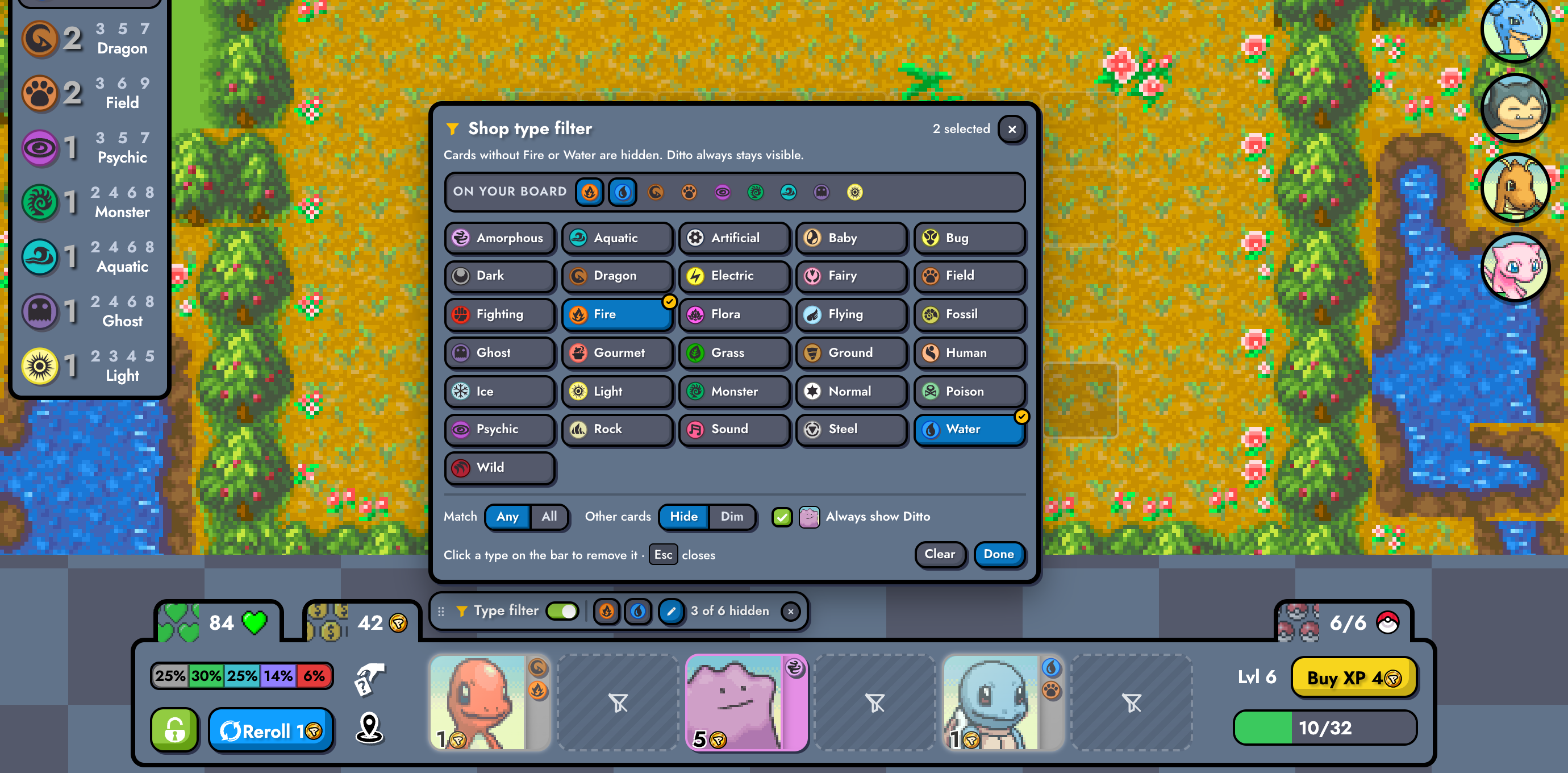
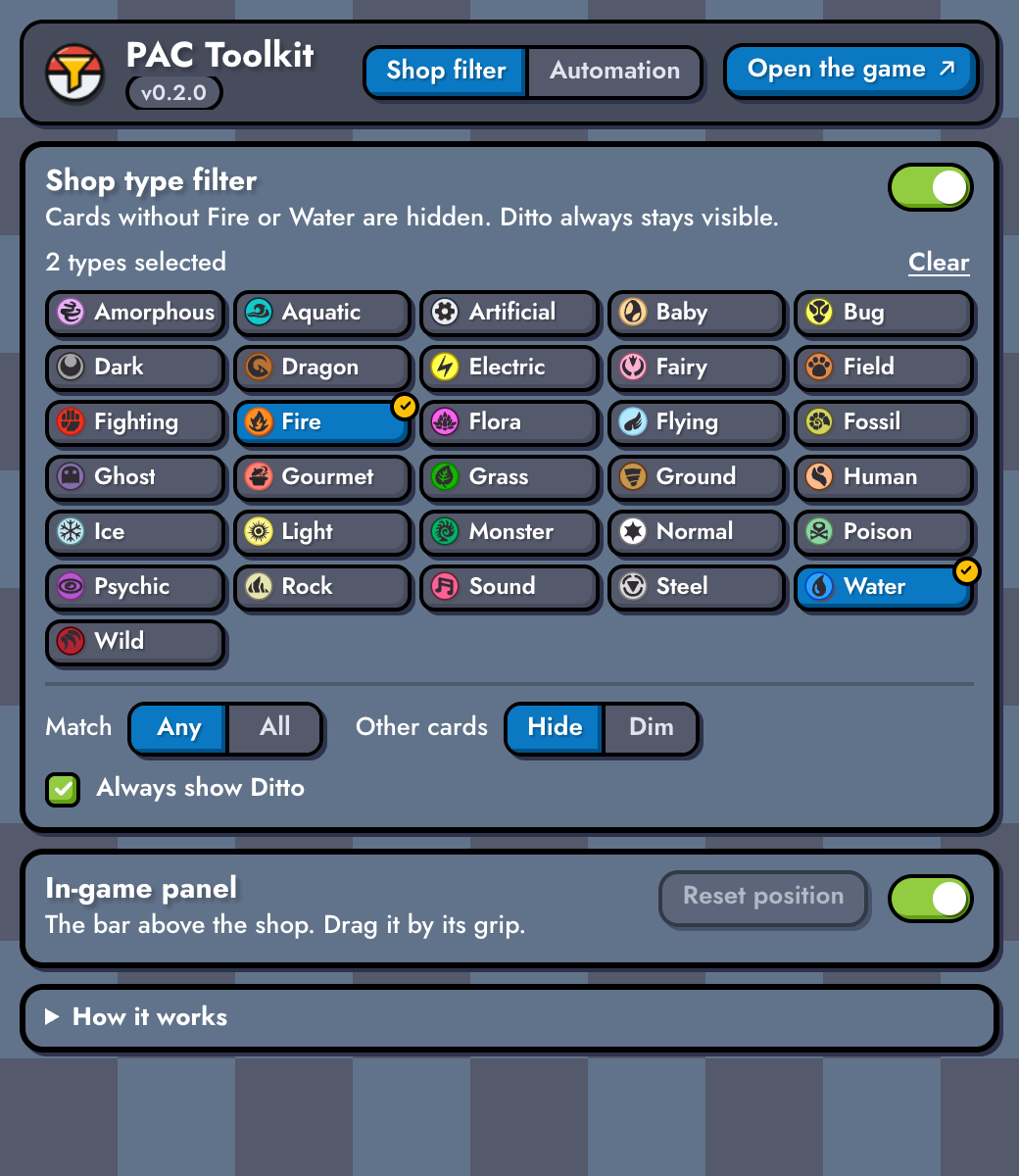
Open the picker from the bar above your shop. The synergies on your board are one click away, and you can pick as many types as you like.
Free Chrome extension · Pokémon Auto Chess
PAC Toolkit hides every shop card that doesn't have the types you're building, the moment you reroll. Ditto always stays. Plus two optional automations that pick your berries and use your Fire Shard for you.
Not on the Chrome Web Store yet. You add it by hand in about two minutes. Made for desktop Chrome and other Chromium browsers, like Edge and Brave.

4 of 6 hidden · Litwick and Ditto stay
 Fire
 Water
Features
Open the picker from the bar above your shop. The synergies on your board are one click away, and you can pick as many types as you like.
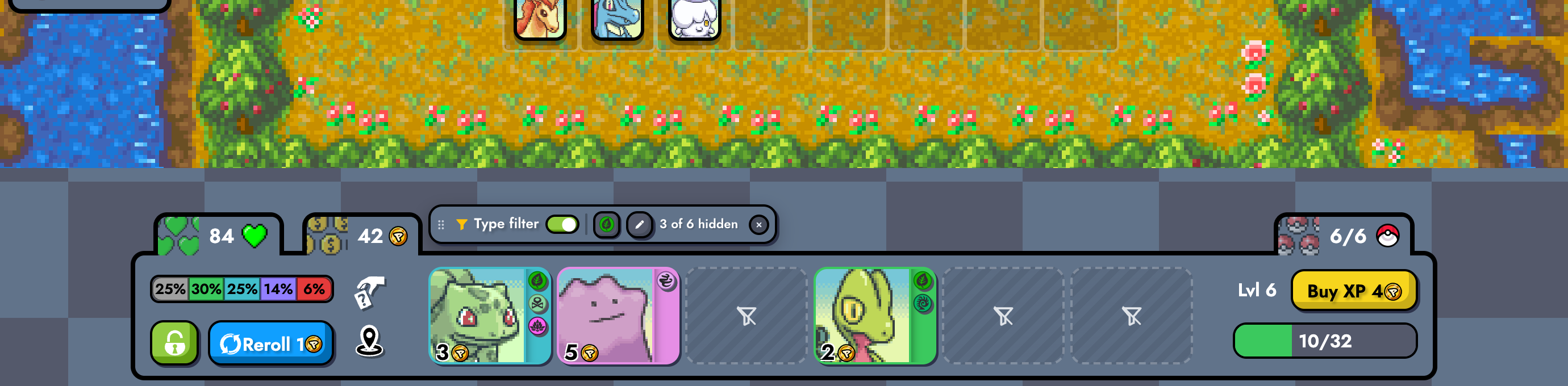
Press D or Reroll. Cards without your types become empty outlines before they're drawn, so nothing moves under your cursor and you can't buy the wrong one by accident.
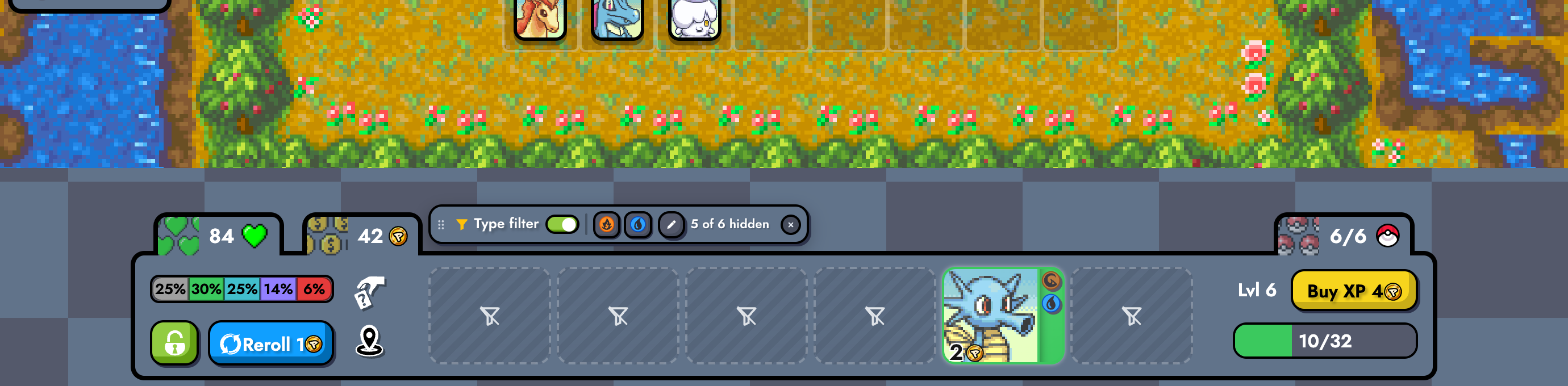
Ditto can become whatever you need, so it's never hidden. You can turn that off.
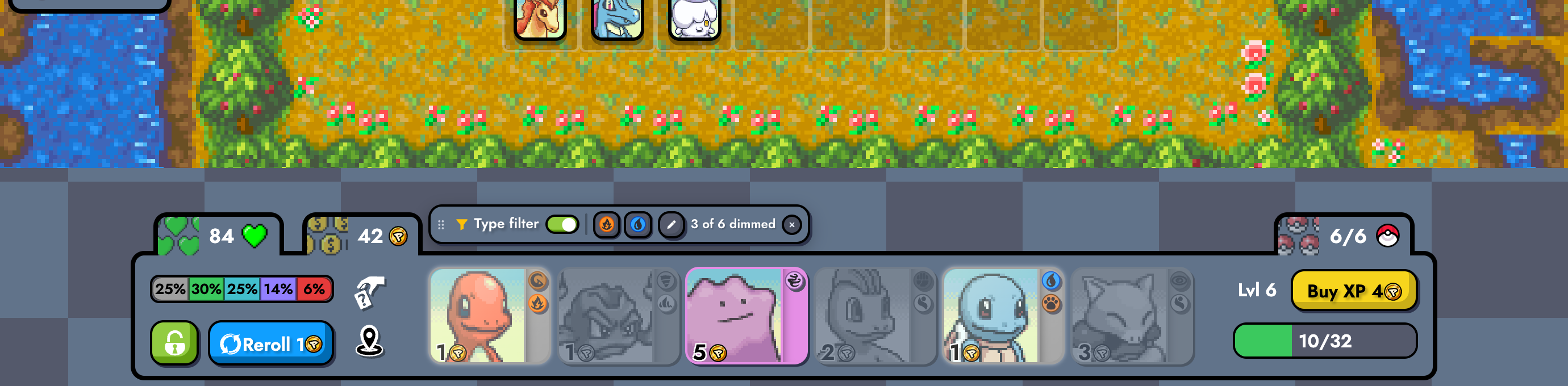
Prefer to see everything? Dim fades the other cards instead, and they stay buyable.
Keep cards with any of your types, or only the ones that have all of them.
FireorWaterFireandWaterYour hotkeys keep working. Drag the bar anywhere and it stays there. In smaller windows it moves beside your bench.

Everything is also in the toolbar popup, including a switch to hide the bar. It has two tabs: Shop filter and Automation, and opens on the one you used last.
Automation
Two small jobs you'd otherwise click through every stage. Both are off until you switch them on, and they do exactly what your own click or drag would do, nothing more.
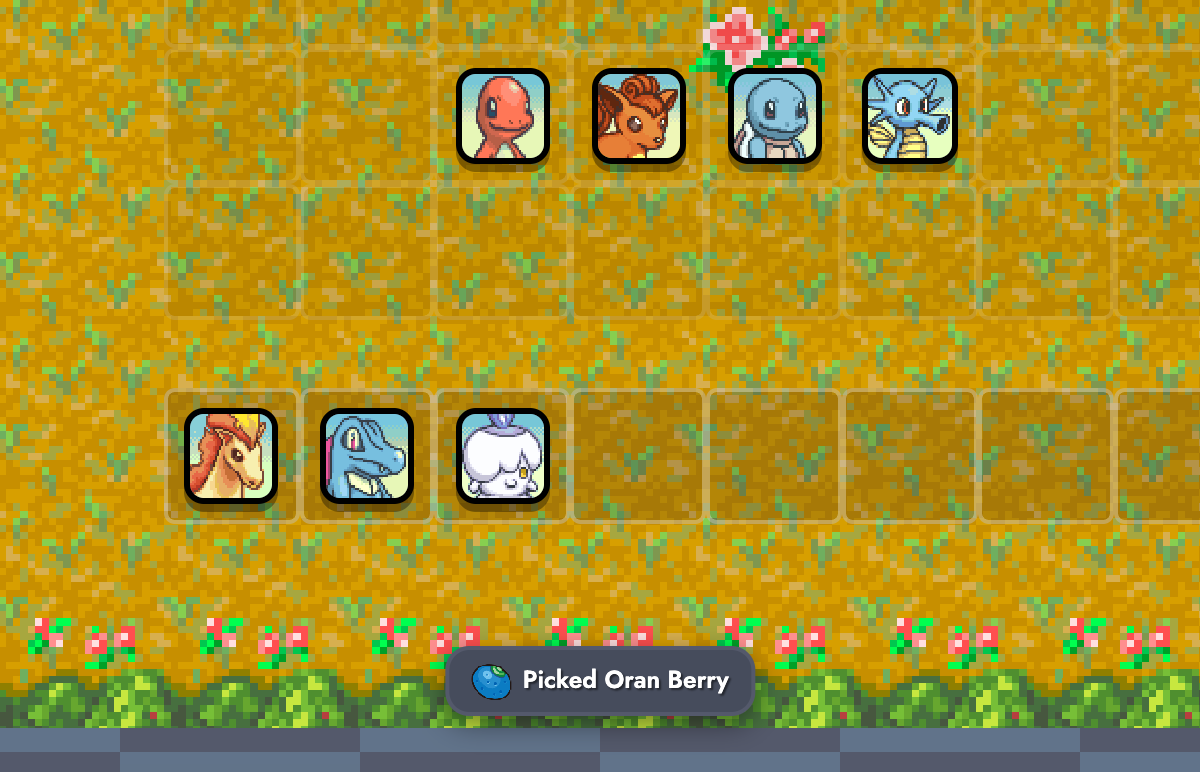
With Grass, your berry trees ripen every few rounds. Switch this on and every ripe tree is picked as soon as it's ready, just like clicking it, with a short notice in the game.
At Grass 7 or 8 it can wait for golden berries: ripe trees stay on the branch until Grass 9 turns them golden. In town they're picked right away, before a portal resets the trees.
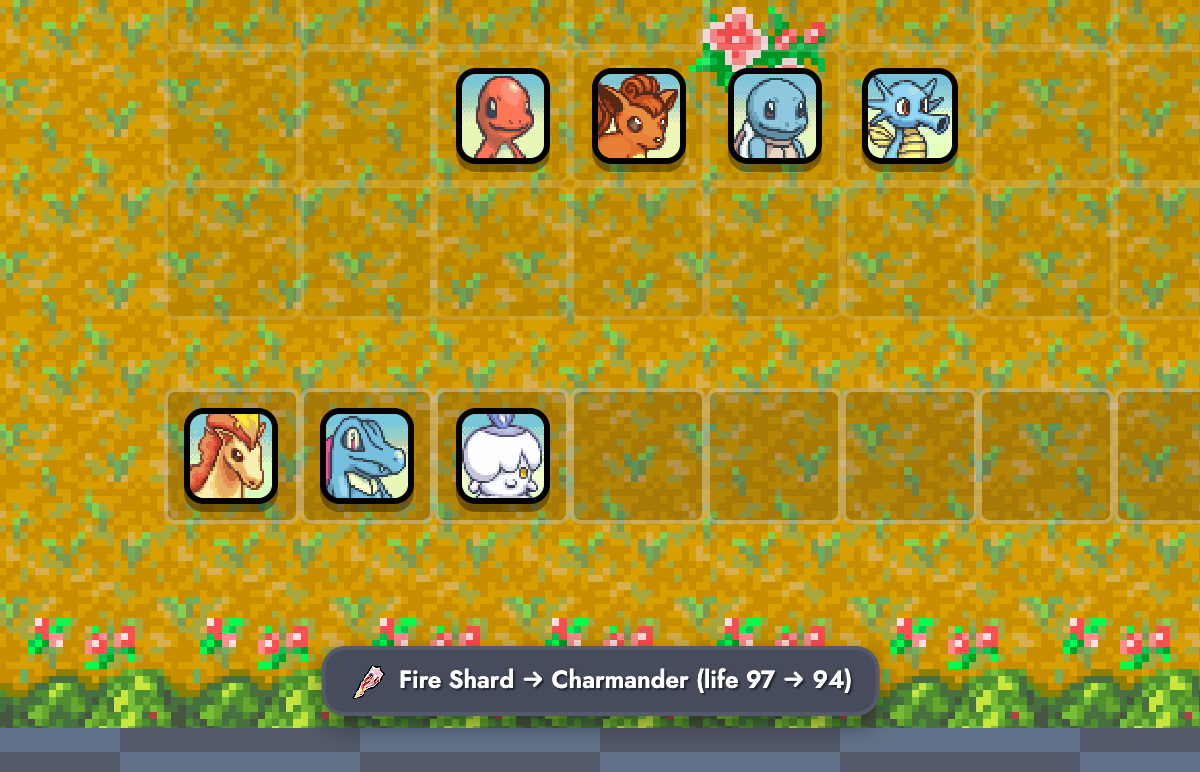
At Fire 8 the game gives you a Fire Shard every stage. Switch it on, then use it once by hand: drag it onto a Fire unit. From then on PAC Toolkit uses it on that same unit, with 3 seconds left in the planning phase, so you have the whole phase to place it.
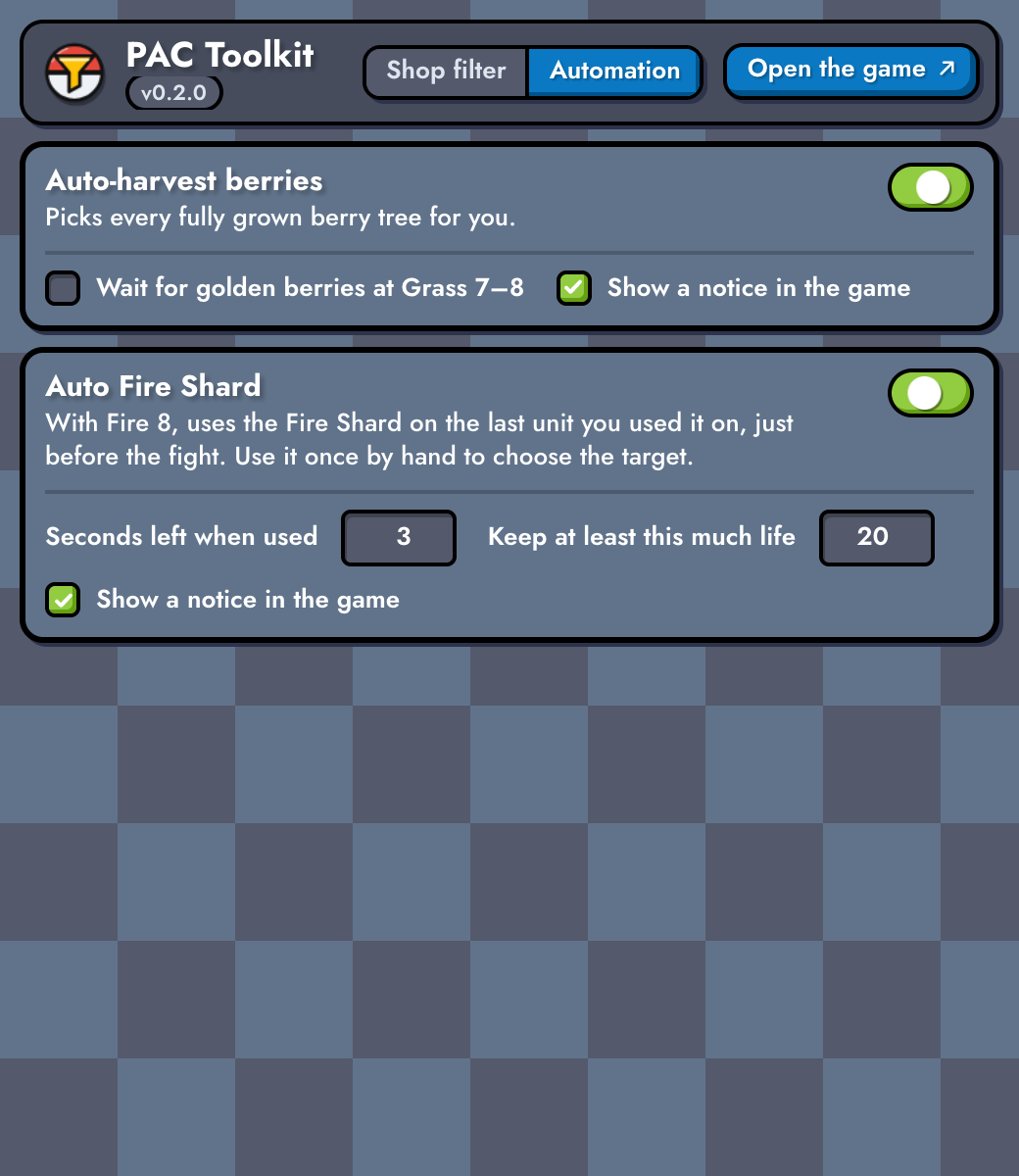
Click PAC Toolkit in the toolbar, open the Automation tab and flip the switch for the one you want. Changes apply right away, even mid-game.
Install
PAC Toolkit isn't on the Chrome Web Store yet, so you load it yourself. It's the same extension either way.
Double-click the file (on Windows: right-click → Extract All). Move the pac-toolkit-0.2.0 folder somewhere permanent, like Documents. Chrome loads the extension from this folder every time, so don't delete it.
You get this folder:
Type chrome://extensions in the address bar and press Enter.
chrome://extensions
Using Edge or Brave?
| Browser | Address | Developer mode switch |
|---|---|---|
| Chrome | chrome://extensions | Top-right corner |
| Edge | edge://extensions | In the left-hand panel |
| Brave | brave://extensions | Top-right corner, same as Chrome |
On desktop: Chrome or Edge 111 or newer, or a Brave built on Chromium 111 or newer (brave://settings/help shows the Chromium version).
Flip the switch in the top-right corner (in Edge, it's in the left-hand panel), and leave it on. Chrome only runs extensions you added by hand while Developer mode is on.

Pick the pac-toolkit-0.2.0 folder — the one with manifest.json directly inside.
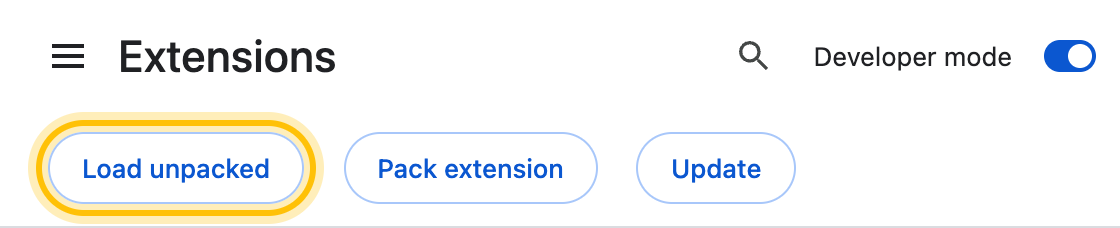
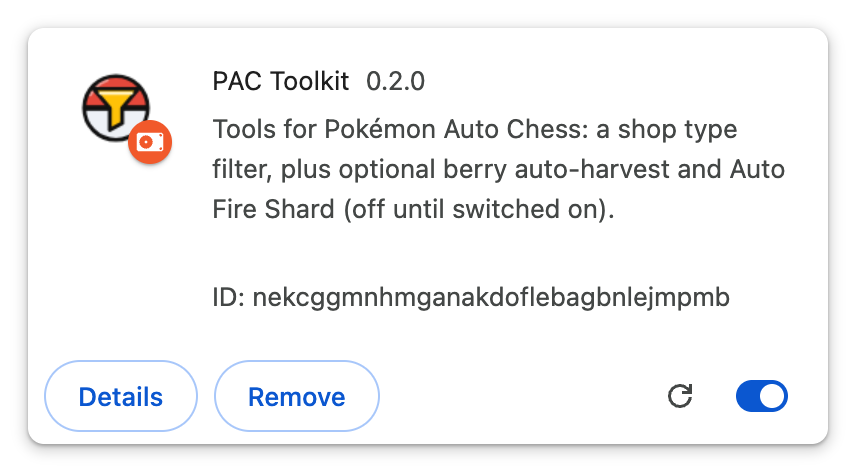
PAC Toolkit then shows up on the page:
Click the puzzle-piece icon next to the address bar and pin PAC Toolkit (in Edge, click its eye icon, Show in toolbar). Open pokemon-auto-chess.com (already open? reload the tab). The bar appears above your shop when a game starts.
Download the new zip and unzip it. Open the folder Chrome already loads PAC Toolkit from: the one you chose with Load unpacked (not sure? Details on the PAC Toolkit card shows it under “Loaded from”). Delete everything inside it and copy in everything from the new folder.
Then open your extensions page, click the reload arrow on the PAC Toolkit card (in Edge, the Reload link) and reload the game tab. Your settings stay.
Don't use Load unpacked on the new folder, and don't click Remove. Chrome would treat it as a new extension, and it would start with default settings.
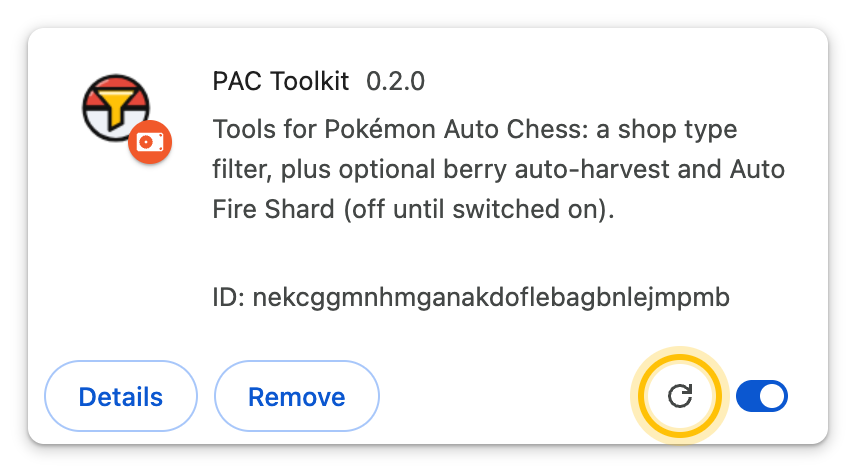
Click Remove on the PAC Toolkit card, then delete the folder. Removing it also deletes your settings.
The SHA-256 checksum of pac-toolkit-0.2.0.zip is:
ad4bf9cae2b08def26eed75ced491582d7d4d8ad8e8c232cca512098fa48dea6
Compare it with what your computer computes. Open Terminal (Mac or Linux) or Command Prompt (Windows: search the Start menu for cmd) and paste the command for your computer. It looks in your Downloads folder; if you saved the zip somewhere else, use that folder instead.
shasum -a 256 ~/Downloads/pac-toolkit-0.2.0.zipcertutil -hashfile "%USERPROFILE%\Downloads\pac-toolkit-0.2.0.zip" SHA256Privacy
Runs only on pokemon-auto-chess.com, and only loads images from the game itself.
One permission, storage, to remember your settings on this computer. Chrome also lists site access to pokemon-auto-chess.com, because that's the only site it runs on (the filter, and the automations you switch on). No host permissions.
Collects nothing and sends nothing anywhere. The automations only send the game the same moves your own click or drag would, over the game's own connection.
The filter never clicks or buys anything; hidden cards just can't be clicked by mistake. The two automations, off until you switch them on, pick your berries and use your Fire Shard exactly as your own click or drag would. Nothing else is ever done for you.
FAQ
It's new. Until it's listed, installing by hand is the way to get it. It's the same extension either way.
You picked the wrong folder. Choose the folder that has manifest.json directly inside it.
Reload the game tab. The bar only shows during a game, above the shop. On chrome://extensions, check that Developer mode and PAC Toolkit's switch are both on. In the extension's popup, check that “In-game panel” is on.
Chrome treats extensions you add by hand differently from Chrome Web Store ones, because the store hasn't reviewed them, and it may point them out or ask whether to keep them. Keep PAC Toolkit if you want to keep using it: removing it also deletes your settings. Chrome also switches hand-added extensions off while Developer mode is off. Turn Developer mode back on at chrome://extensions and PAC Toolkit comes back, settings included. Edge may remind you about developer-mode extensions when it starts; close the reminder without turning them off.
No. The shop rolls exactly as before. The filter only hides cards you said you don't want, and it only reads what's already on your screen, like the cards in your shop and the synergies on your board. It never rerolls, buys or sells for you.
You choose it. With Auto Fire Shard on, drag the shard onto a Fire unit yourself once, and PAC Toolkit uses it on that unit every stage after that. To change it, use the shard by hand on another unit. If the unit evolves, the shard follows it, as long as you have only one of the evolved form. The choice lasts for the game: a new game starts without one.
It skips a stage (with a notice, if notices are on) when you haven't chosen a target yet, when the unit is gone (sold, or evolved into a form you have more than one of), when it's on your bench, when it's no longer a Fire unit, or when using the shard would take you below your life limit (20 by default; in Double Up your partner's life counts too). The shard stays in your items, so you can still use it by hand. Also check that it's switched on in the popup's Automation tab, and that you have Fire 8. After a game update the automations may quietly stop until PAC Toolkit is updated; the filter keeps working.
Not yet. It needs a desktop Chromium browser: Chrome or Edge 111 or newer, or a Brave built on Chromium 111 or newer.
It stays out of replays: the automations never act there. The game hides your shop while you watch another player, so the bar hides too, and the automations only ever act for you, never for the player you watch.
More tools for Pokémon Auto Chess are on the way.


